
SMultisig is a multisignature wallet application for Safrochain that allows multiple users to securely manage a shared account and its assets.
Instead of relying on a single wallet, a multisig can require approvals from multiple authorized signers before a transaction is executed. For example, a 2-of-3 multisig requires at least two signatures from three authorized signers.
This guide provides a practical walkthrough of SMultisig and is organized into three main parts:
- Part I: Creating a Multisig: learn how to create and configure a multisig, add authorized signers, and define the signature threshold;
- Part II: Creating, Signing, and Executing a Transaction: learn how to fund the multisig, create a transaction proposal, collect the required signatures, execute the transaction, and verify its completion;
- Part III: Recovering an Existing Multisig: learn how to re-register an existing on-chain multisig in SMultisig using its original configuration.
Note: SMultisig supports both Mainnet and Testnet. This guide uses Safrochain Mainnet for the practical walkthrough.
Getting Started
Go to : Smultisig
SMultisig provides shared custody on Safrochain, allowing teams to collect partial signatures, simulate transactions, and broadcast them once the required K-of-N quorum is reached.
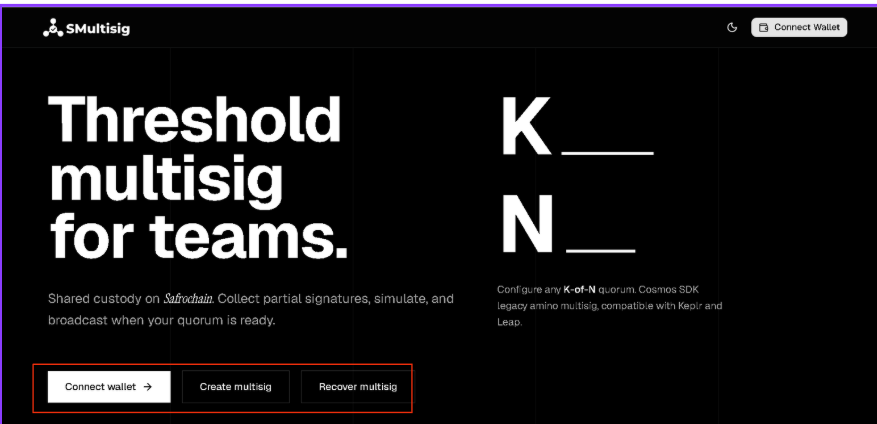
From the home page, you can Connect Wallet, Create Multisig, or Recover Multisig.
Part I: Creating a Multisig
This part focuses on creating and configuring a new multisig account on Safrochain. Follow the steps below to set up your multisig, add authorized signers, define the signature threshold, and complete the creation process.
Step 1: Create a Multisig
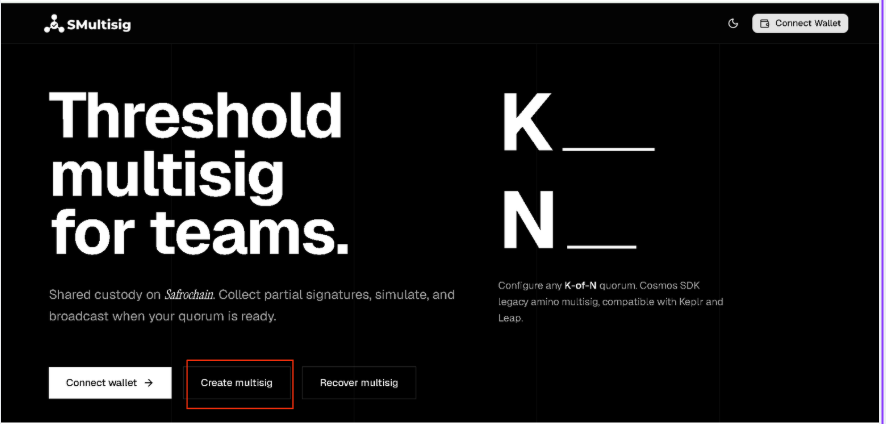
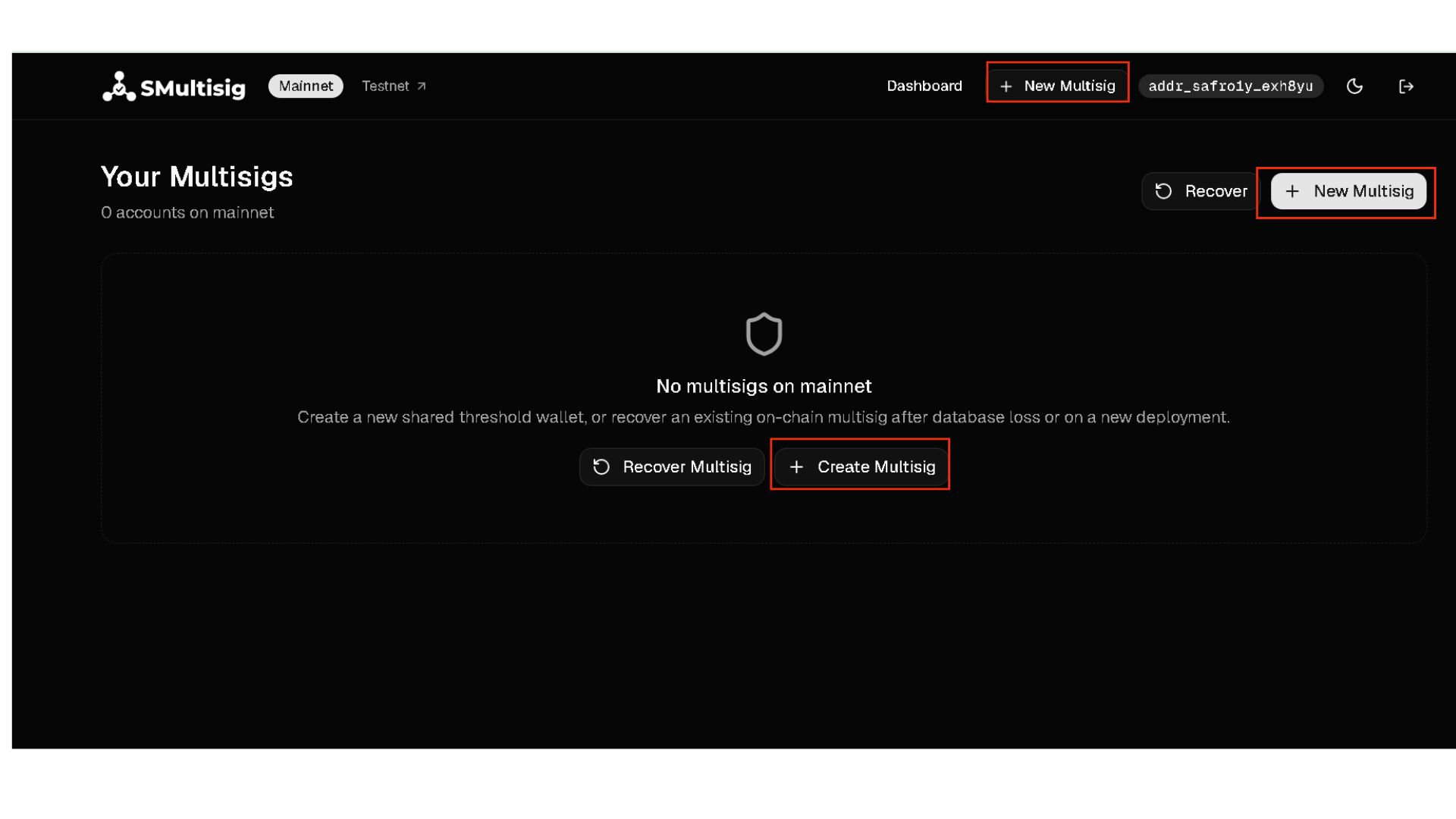
From the SMultisig home page, click Create Multisig to start setting up a new multisig account.
Step 2: Select the Network
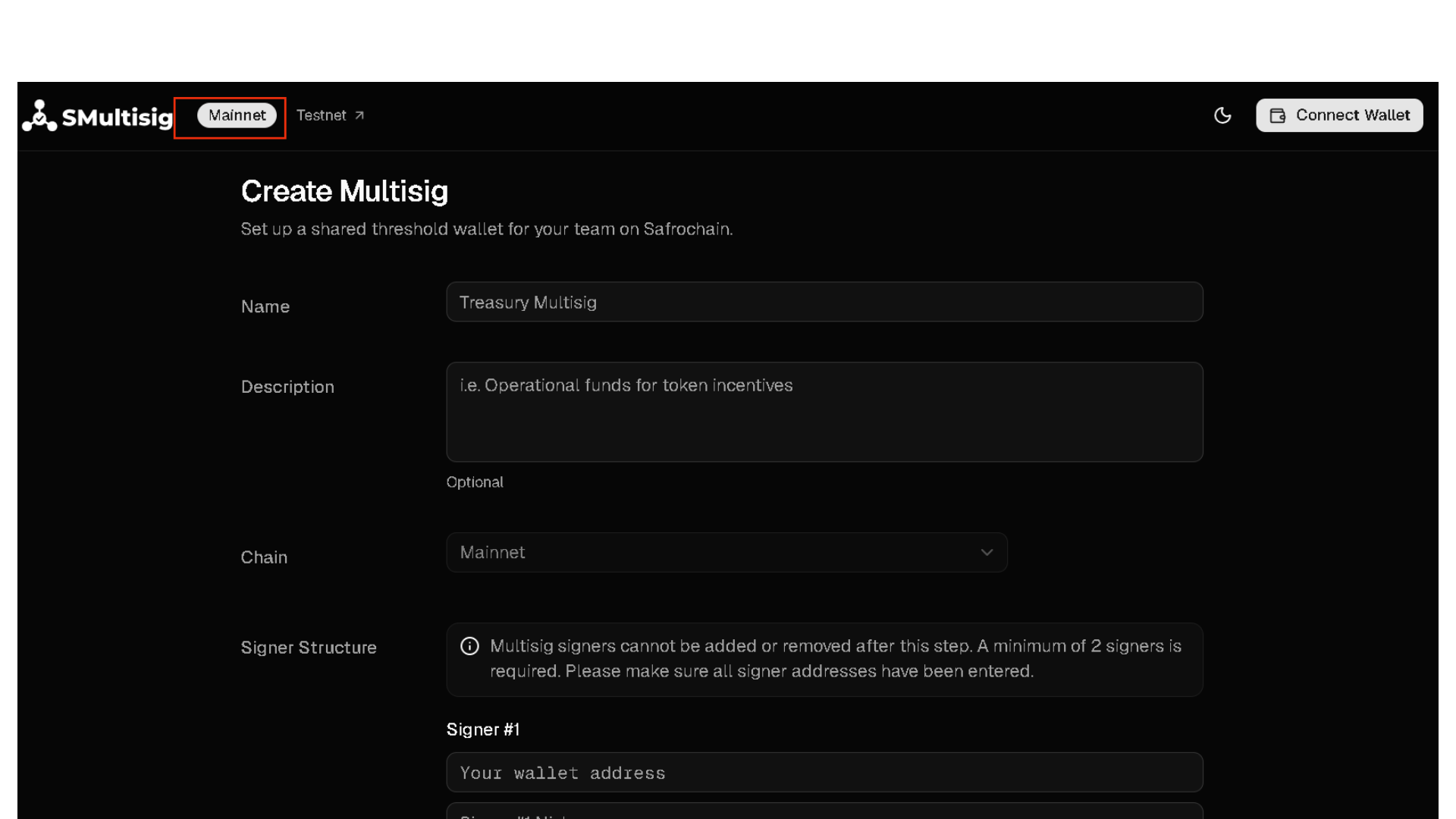
On the Create Multisig page, select the Safrochain network where you want to create your multisig: Mainnet or Testnet.
Since this guide follows a practical walkthrough, we’ll use Safrochain Mainnet throughout the process.
Step 3: Connect the Initial Signer Wallet
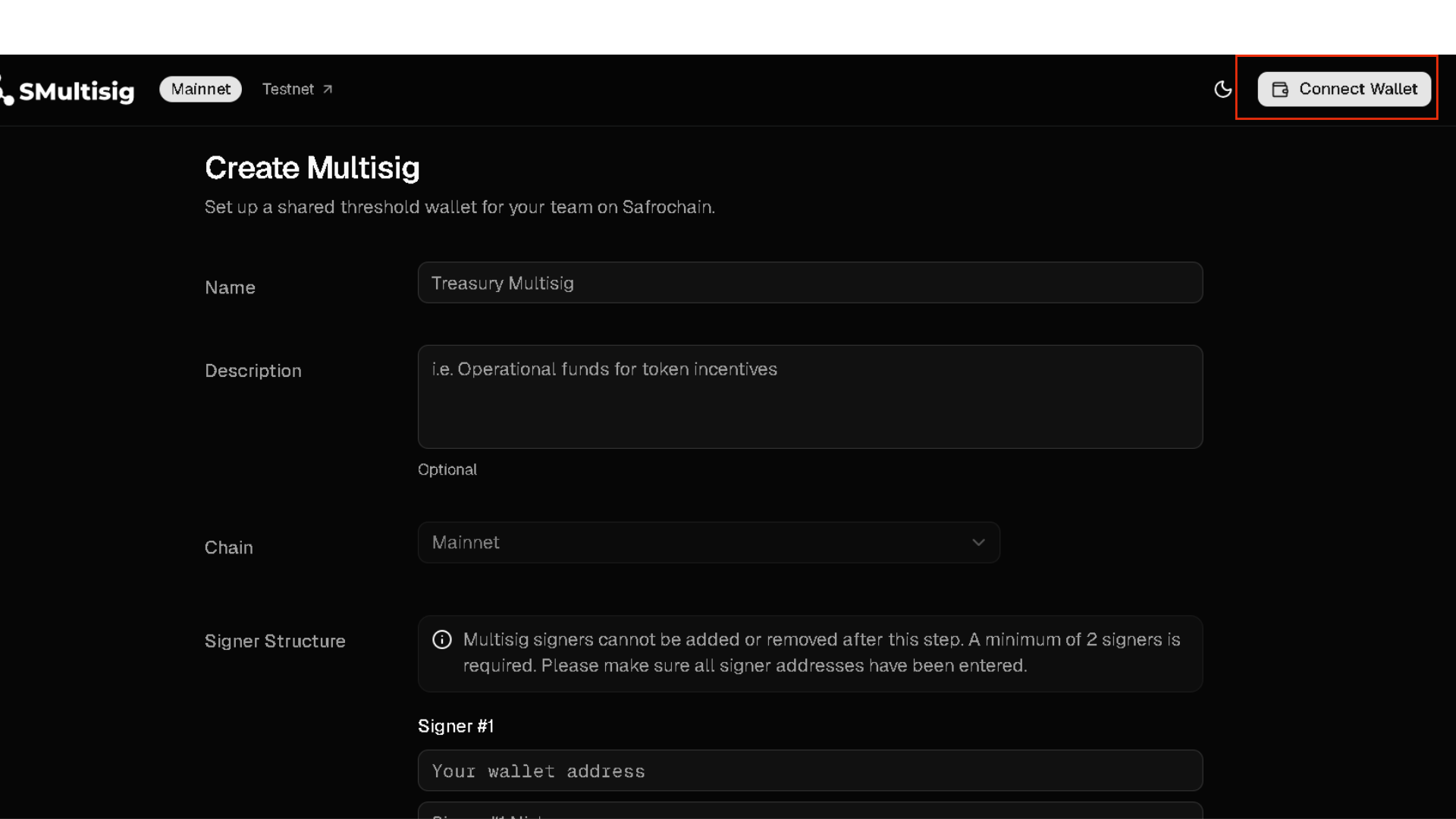
Before clicking Connect Wallet, make sure the wallet currently active in Keplr or Leap is the wallet you intend to use as the initial signer of the multisig.
Then, click Connect Wallet and approve the connection.
This wallet will become the first authorized signer in the multisig configuration. Additional signer wallets can be added based on the desired K-of-N threshold.
Important: Each signer should control their own wallet and private keys. Never share seed phrases or private keys.
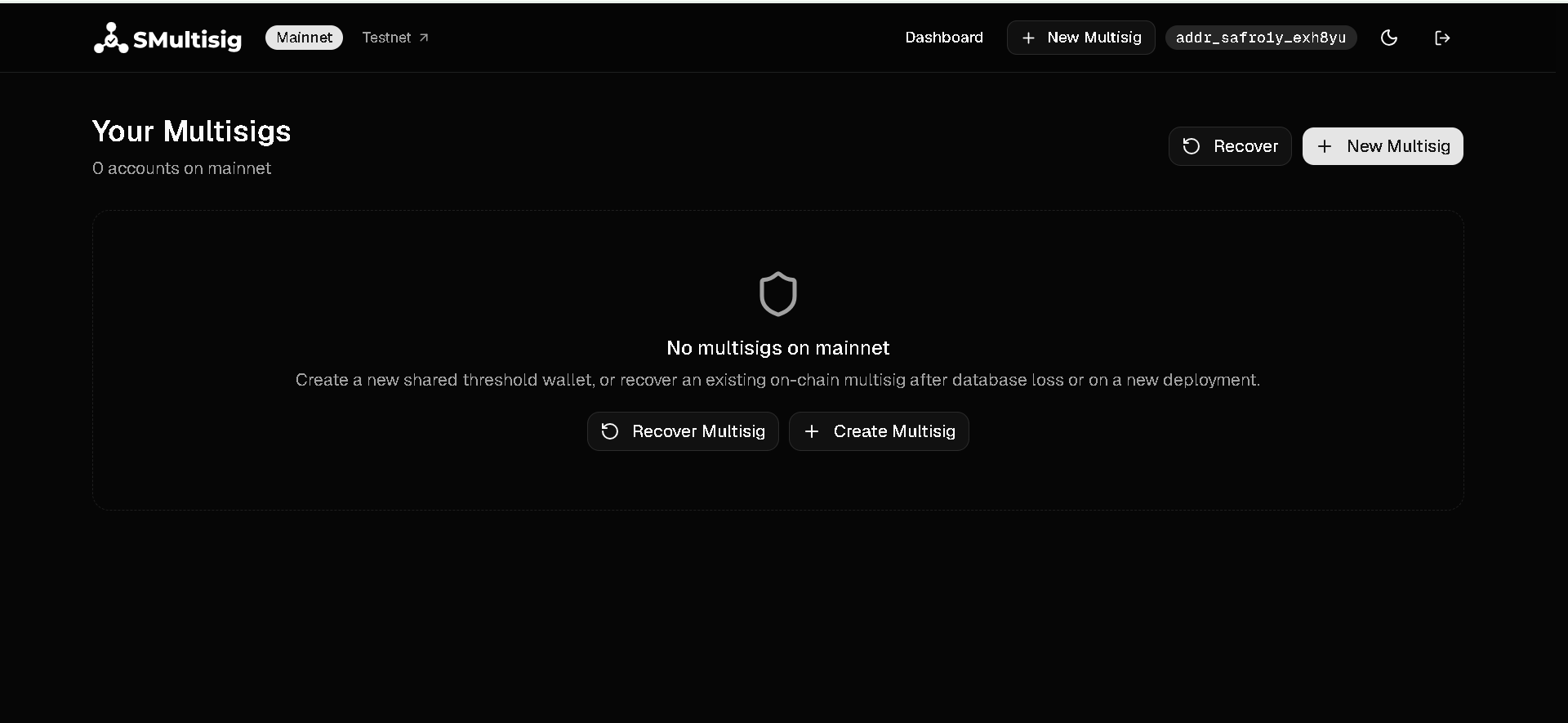
Once connected, you are redirected to the Dashboard, where you can view and manage the multisigs associated with your wallet on the selected network.
If no multisig is currently associated with the wallet, the dashboard displays “No multisigs on mainnet.” From here, you can create a new multisig or recover an existing on chain multisig.
Note: The selected network and connected wallet address are displayed at the top of the interface.
Step 4: Create a New Multisig
From the Dashboard, click Create Multisig to begin configuring your multisig account.
This will open the setup page where you can define the multisig details, add signers, and configure the required signing threshold.
Step 5: Configure Your Multisig
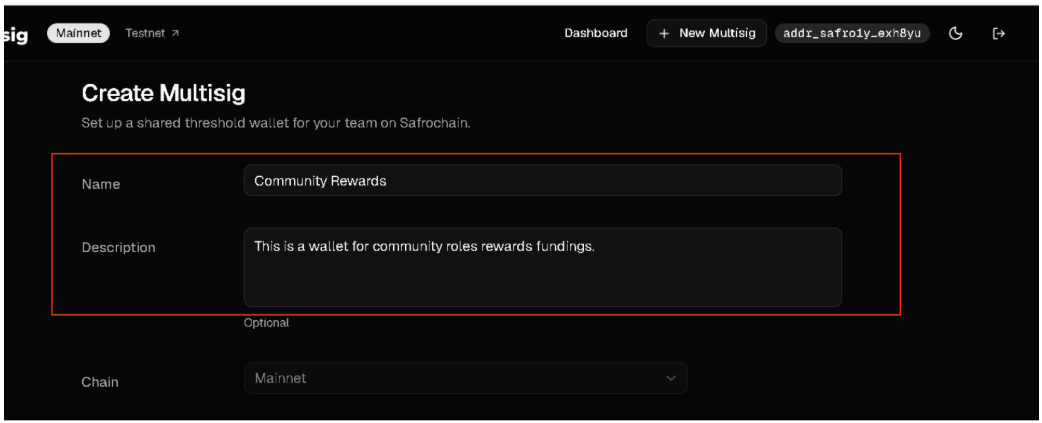
On the Create Multisig page, configure your multisig before creating it.
- Enter the Multisig Details
Enter a Name for your multisig and, optionally, add a Description explaining its purpose.
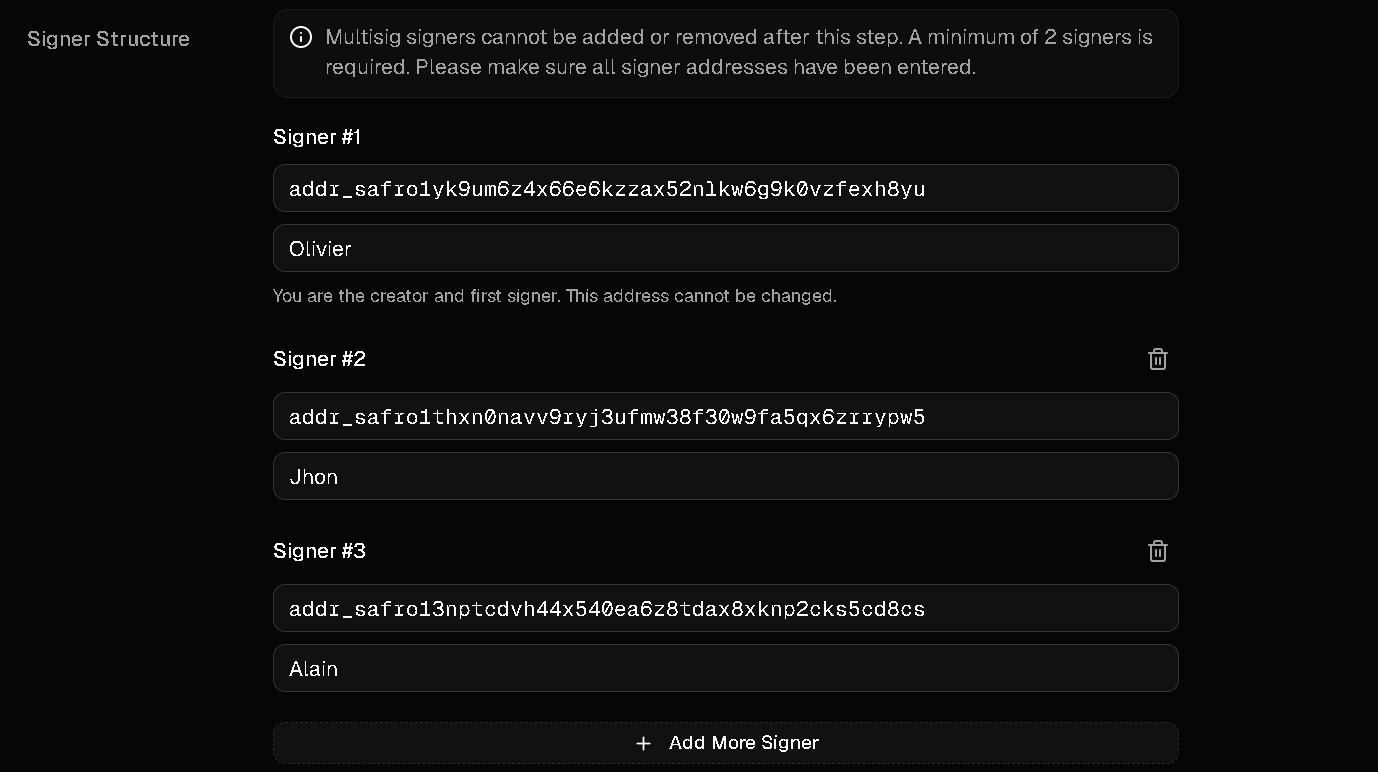
Under Signer Structure, the wallet used to create the multisig is automatically set as Signer #1. This is the creator and first signer, and its address cannot be changed.
Click Add More Signer to add the other authorized signers. For each signer, enter their Safrochain wallet address and assign a nickname to make them easier to identify.
In this example, we use 3 signers: Olivier, Jhon, and Alain.
Important: At least 2 signers are required. Once the multisig is created, signers cannot be added or removed, so verify every wallet address carefully before proceeding.
Set the Threshold to define the minimum number of signer approvals required for a valid multisig transaction.
In this example, the threshold is 2-of-3, meaning that any 2 of the 3 authorized signers must sign before the transaction can proceed.
Use the + or − buttons to adjust the required number of signatures.
Note: SMultisig indicates that a maximum of 7 signatures can be processed per transaction.

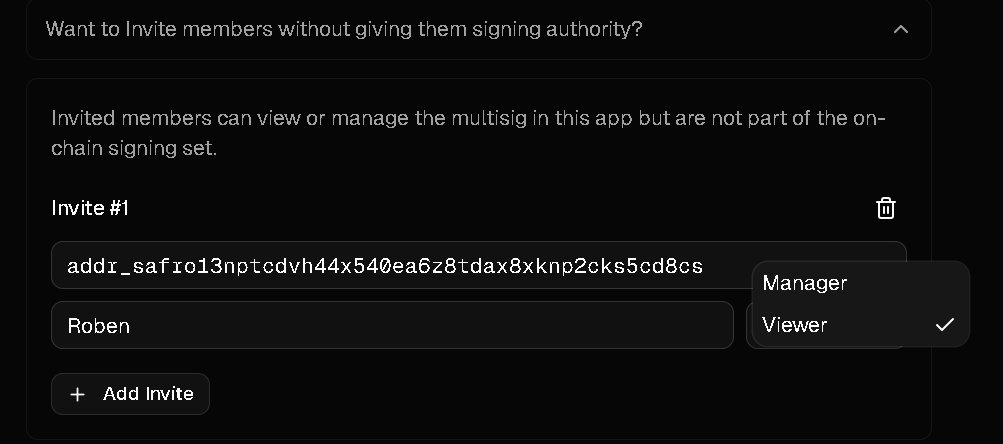
You can invite members without giving them signing authority. Enter the member’s Safrochain address and name, then assign a role:
- Manager: Can manage the multisig in the app.
- Viewer: Can view the multisig without management permissions.
Invited members are not part of the on-chain signing set and do not count toward the signature threshold.
Review the generated multisig address in the Preview section. Once all details and settings are correct, click Create New Multisig to complete the setup.

After Creating Your Multisig
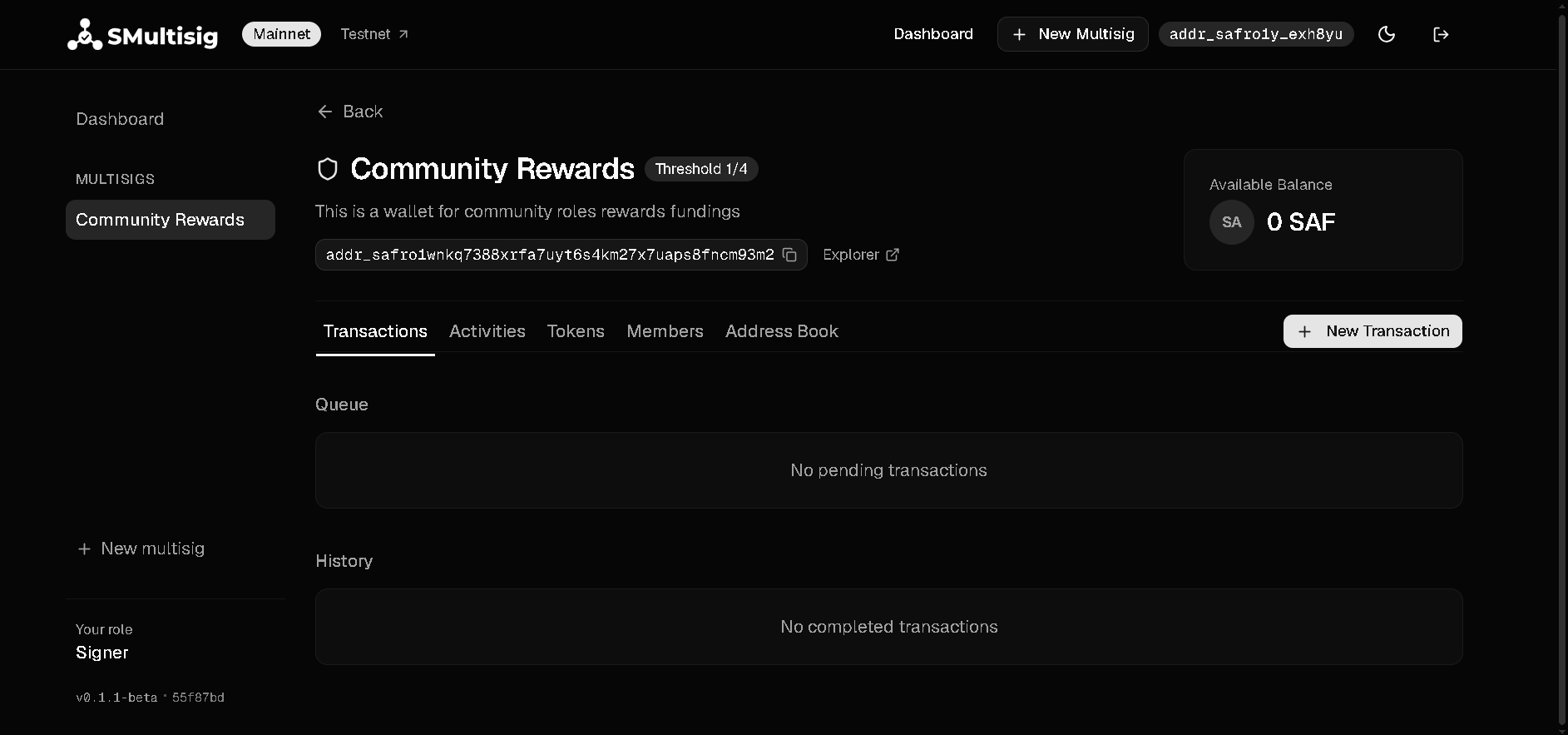
Once created, the multisig opens on its dashboard, where you can see its name, description, signature threshold, multisig address, available balance, and your current role.
The dashboard also provides access to Transactions, Activities, Tokens, Members, and Address Book. From here, you can monitor pending and completed transactions and create a New Transaction.
Important: Keep Your Multisig Configuration
After creating your multisig, securely keep a record of the multisig address, network, complete signer structure, and signature threshold. These details may be required to re-register the multisig using Recover Multisig.
Each signer should also maintain access to their own wallet. Recover Multisig does not recover lost wallets, private keys, or seed phrases.
Part II: Creating, Signing, and Executing a Transaction
This part walks you through the multisig transaction process, from funding the multisig to creating a transaction, collecting the required signatures, and executing it on Safrochain.
Step 1: Fund the Multisig
Before creating a transaction, make sure the multisig has enough SAF to cover the amount you want to send and the required network fees.
Copy the multisig address from the dashboard and send SAF to it from another Safrochain wallet.
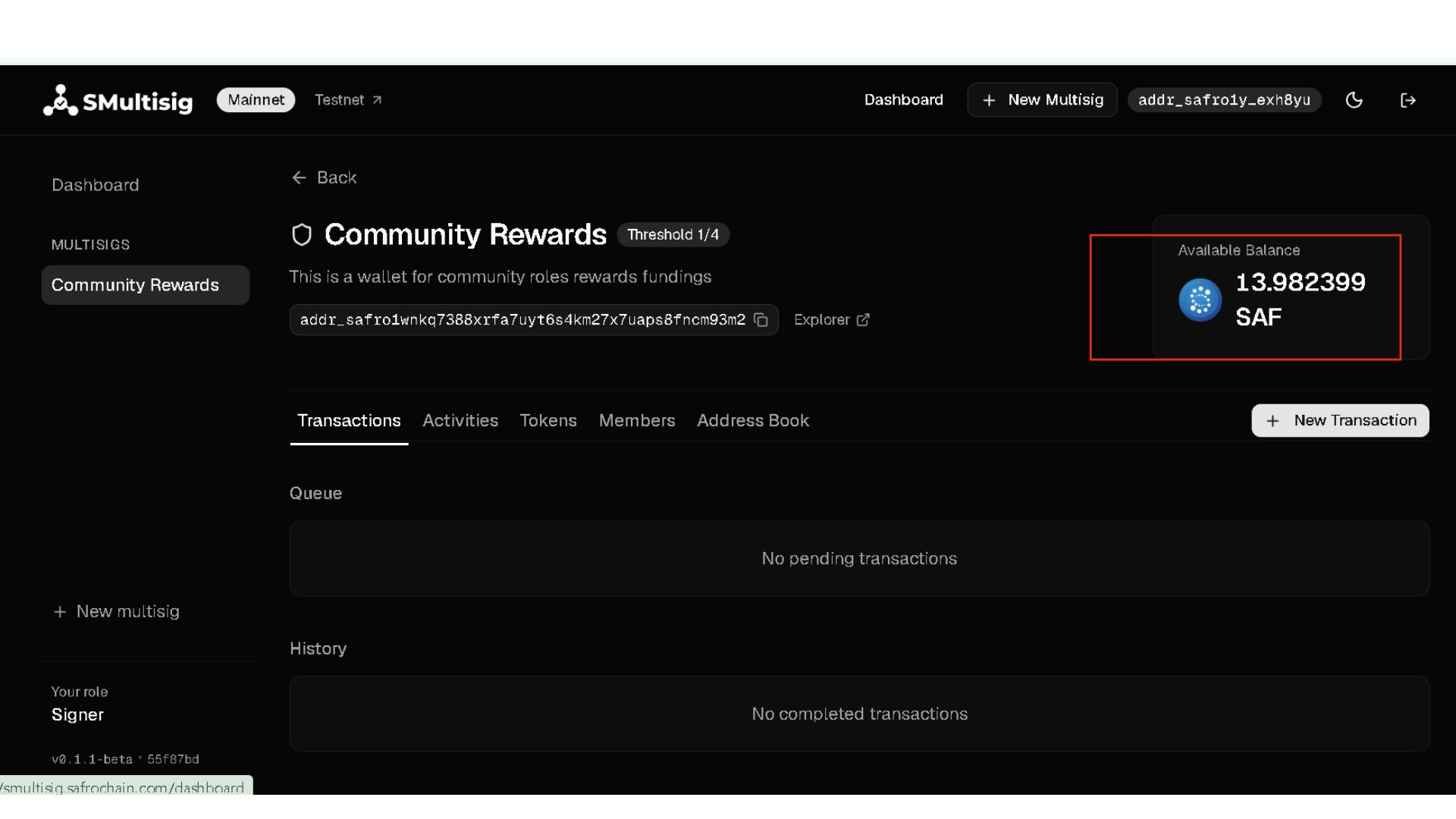
Important: During this walkthrough, funds sent to the multisig address before the multisig was created were not reflected in the available balance. To avoid this issue, complete the multisig creation first, then fund the multisig and confirm that the balance is updated before creating a transaction.
Once the transfer is confirmed, the updated balance will appear on the multisig dashboard.
Step 2: Create a New Transaction
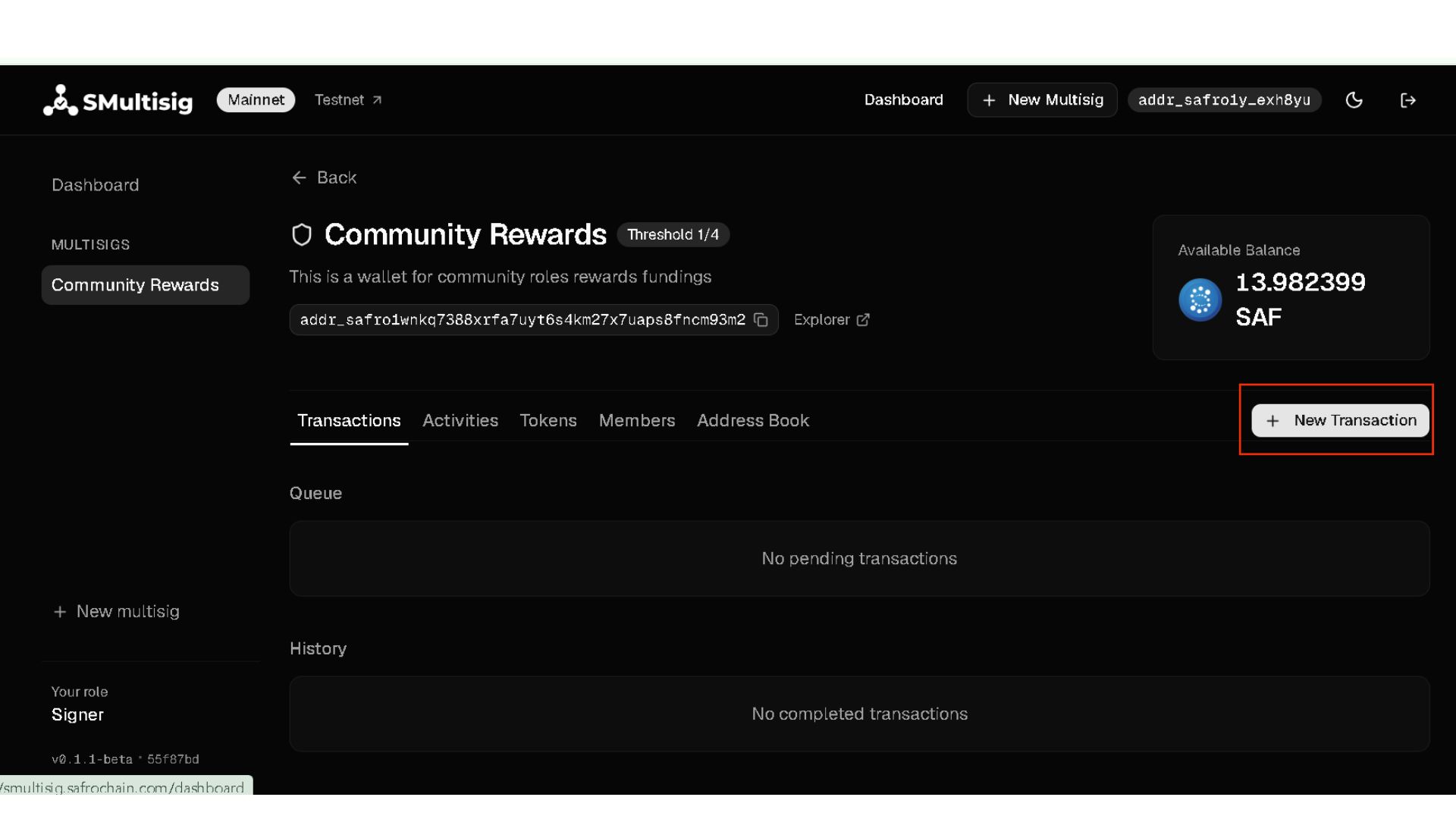
From the multisig dashboard, click New Transaction to start creating a new transaction proposal.
You will then be able to provide the transaction details and configure the on-chain action to be performed.
Step 3: Configure and Submit the Transaction Proposal
Complete the transaction proposal before submitting it for signing.
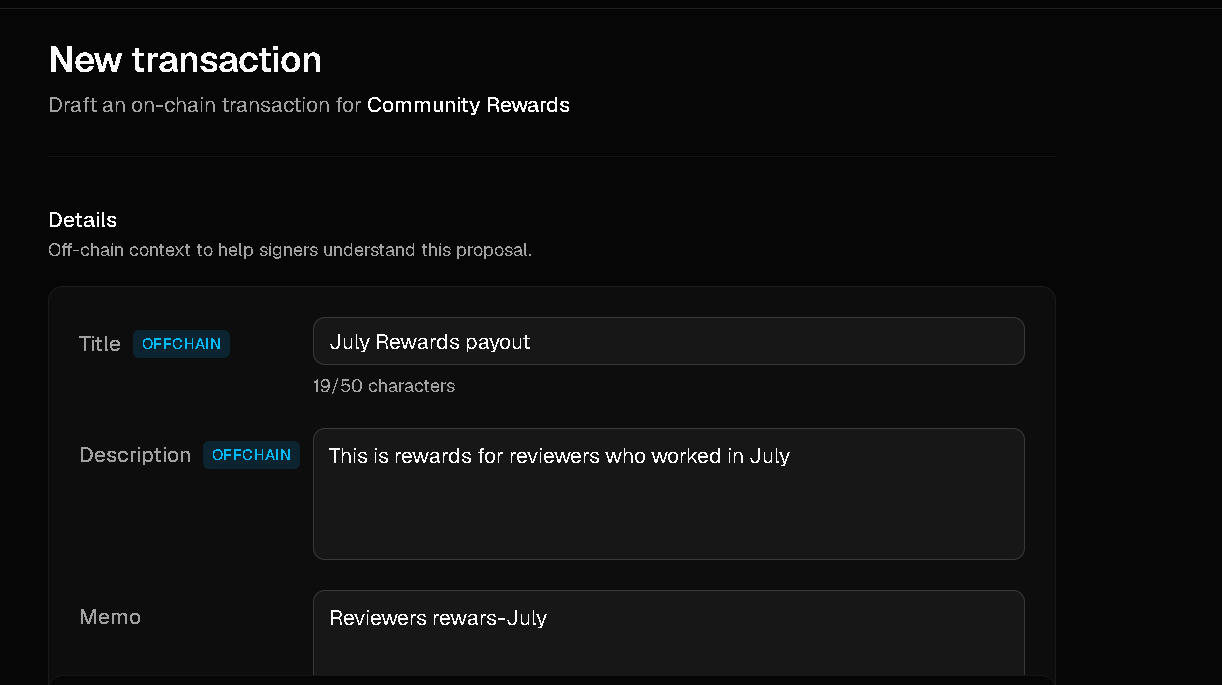
Enter a Title and Description to provide context about the purpose of the transaction. These details help authorized signers understand what they are being asked to approve.
You can also add a Memo when needed.
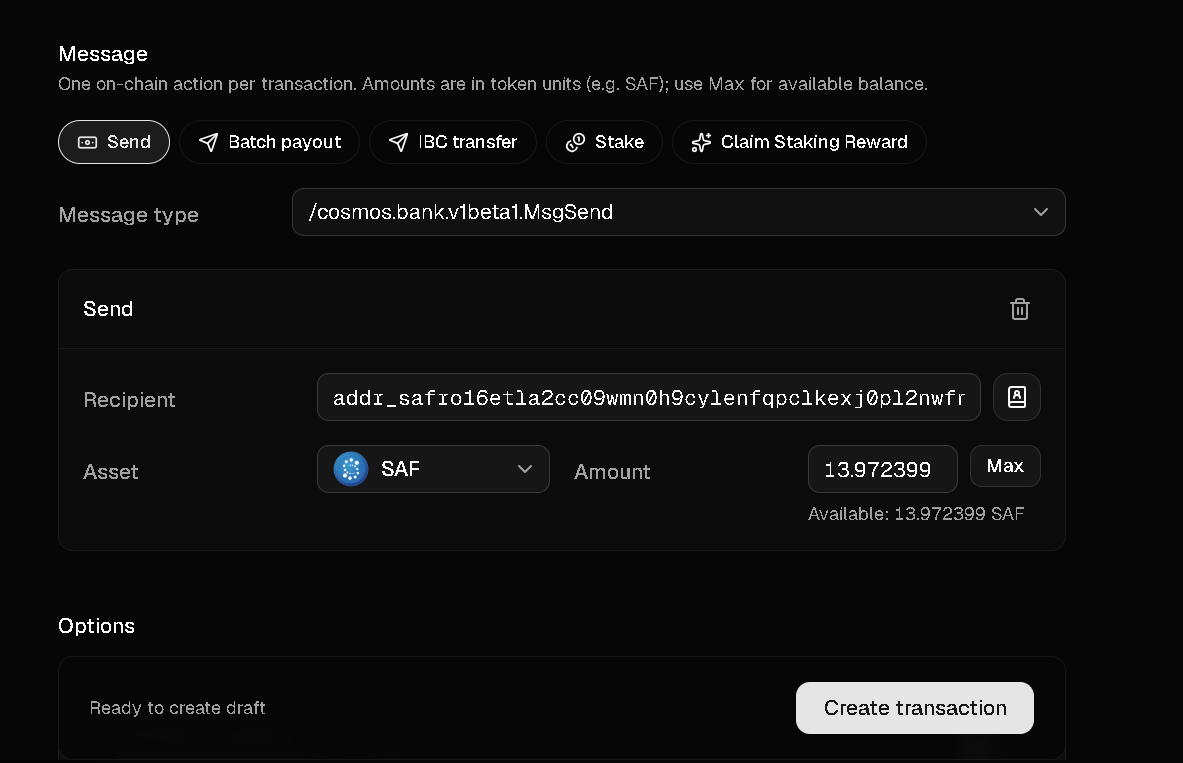
Under Message, select the on-chain action you want to perform. Available actions include Send, Batch payout, IBC transfer, Stake, and Claim Staking Reward.
For this walkthrough, select Send. Enter the recipient’s Safrochain address, select the asset to transfer, and specify the amount. You can also use Max to select the available balance.
Review all details carefully, then click Create transaction to submit the proposal for signing.
After Creating the Transaction
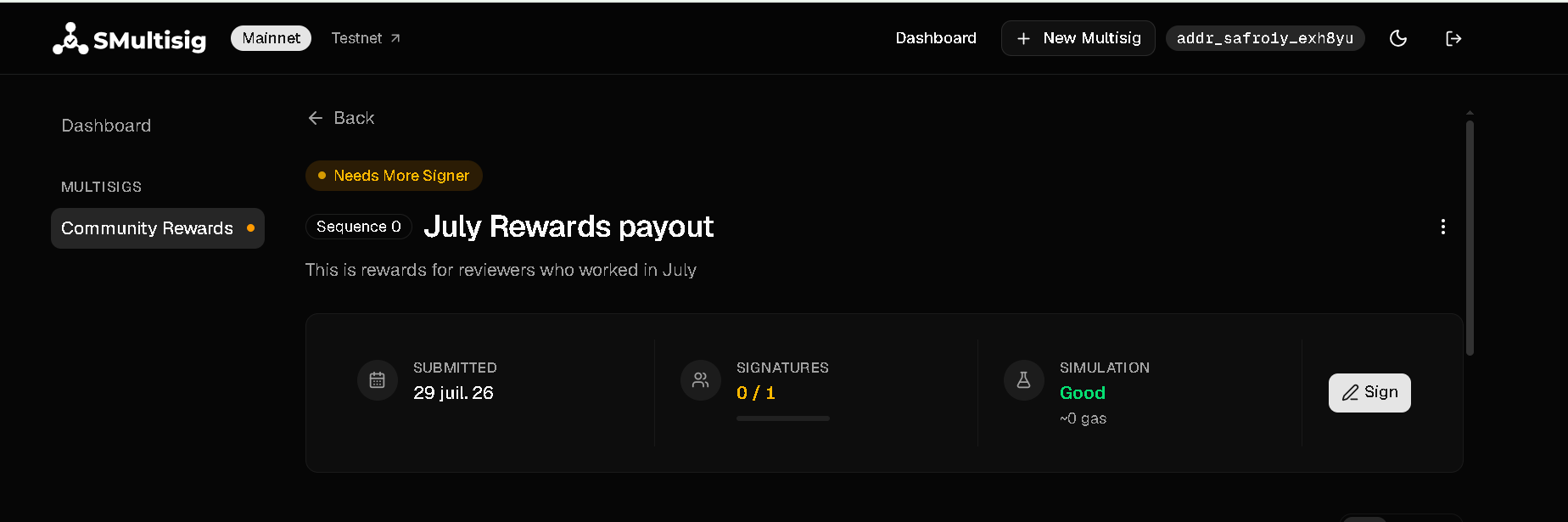
Once created, the transaction appears in the Queue, showing its signature progress and simulation status.
If additional signatures are required, the transaction is marked Needs More Signer. The proposer can open the transaction to monitor its status and signing progress.
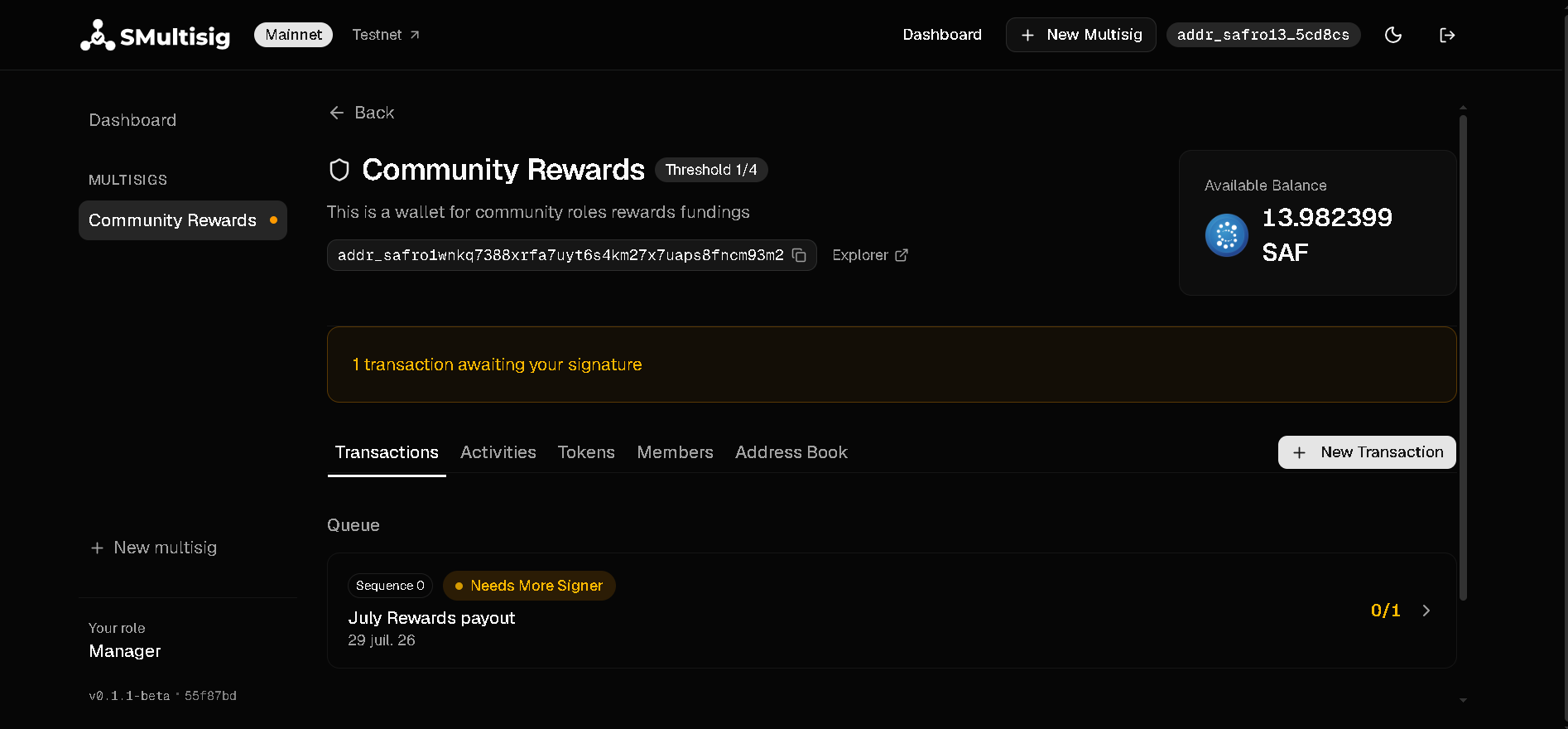
When an authorized signer connects to SMultisig using their registered signer wallet on the same network, the multisig will automatically appear on their Dashboard.
If a transaction is awaiting their approval, SMultisig displays a notification such as “1 transaction awaiting your signature.” The signer can then open the pending transaction from the Queue, review its details, and provide their signature.
Step 4: Review and Sign the Transaction
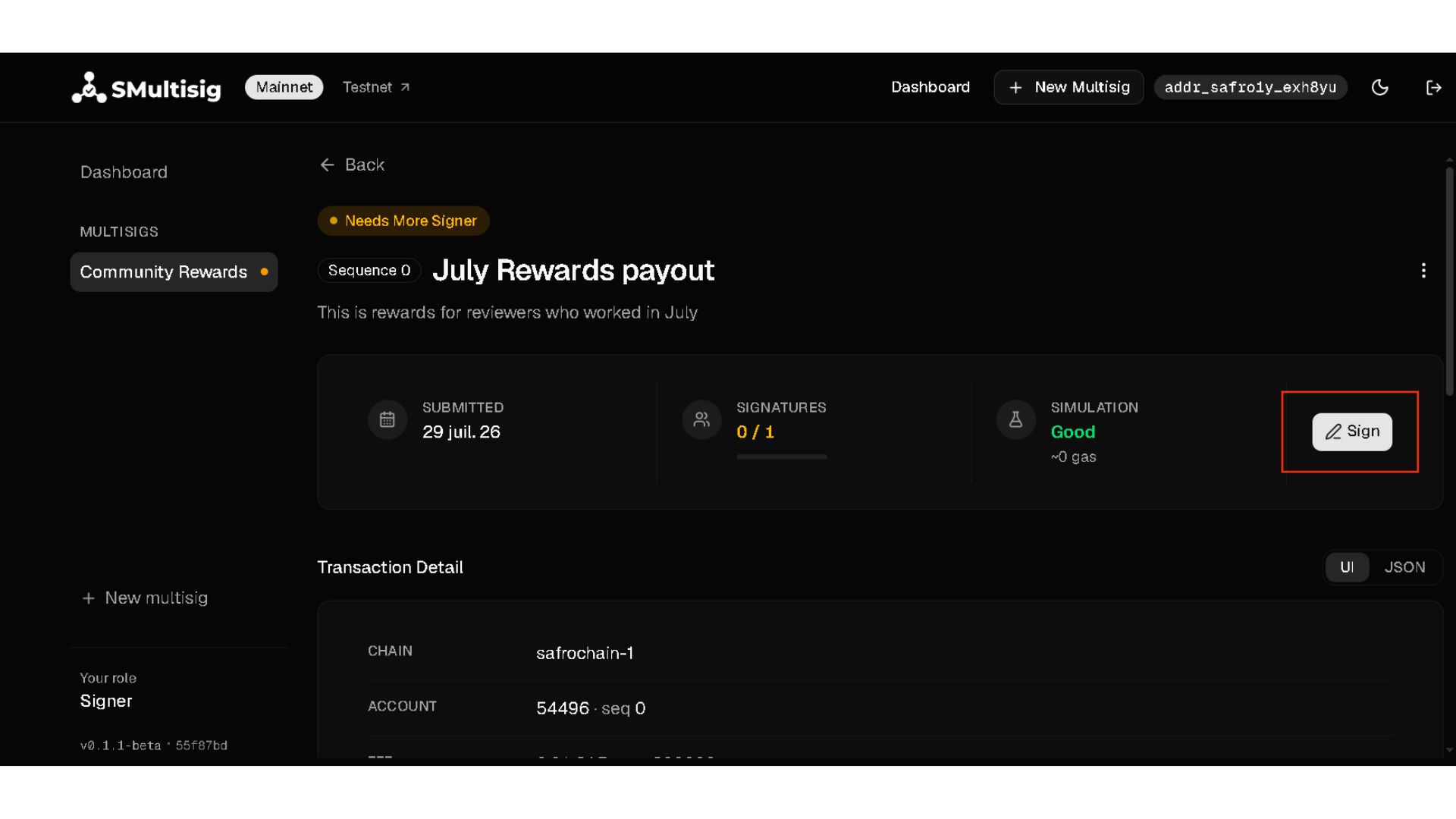
Authorized signers should open the pending transaction from the Queue and carefully review its details before signing.
Once verified, click Sign and approve the signature request in the connected wallet.
Each collected signature updates the transaction’s signing progress until the required signature threshold is reached.
Important: Make sure the correct signer wallet and network are active before signing.
Step 5: Reach the Signature Threshold
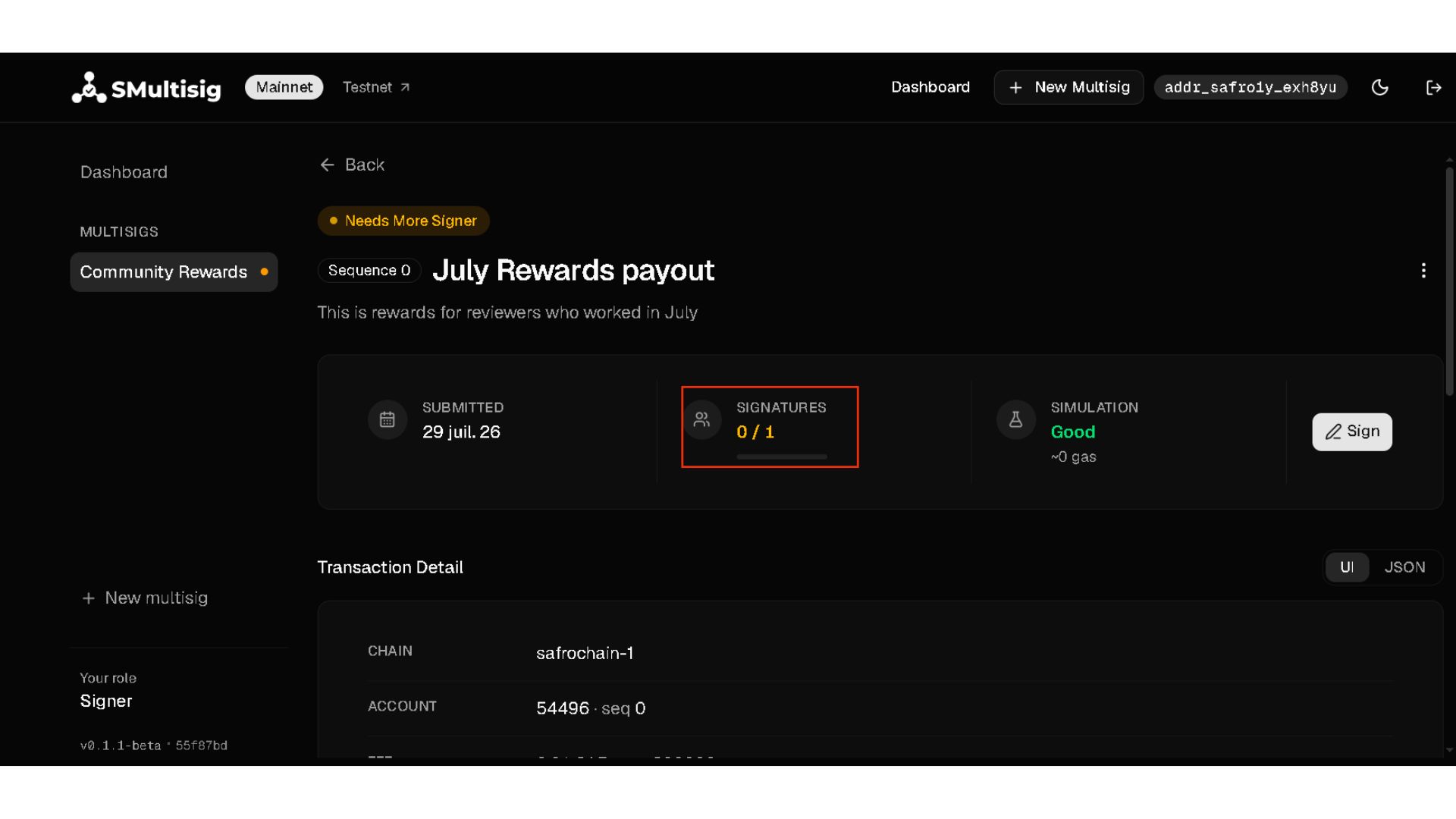
As signatures are collected, SMultisig displays the current signing progress.
For example, in a 2-of-3 multisig, the transaction becomes eligible for execution once any two authorized signers have signed it.
Once the required threshold is reached, the transaction is ready to be executed.
Step 6: Execute the Transaction
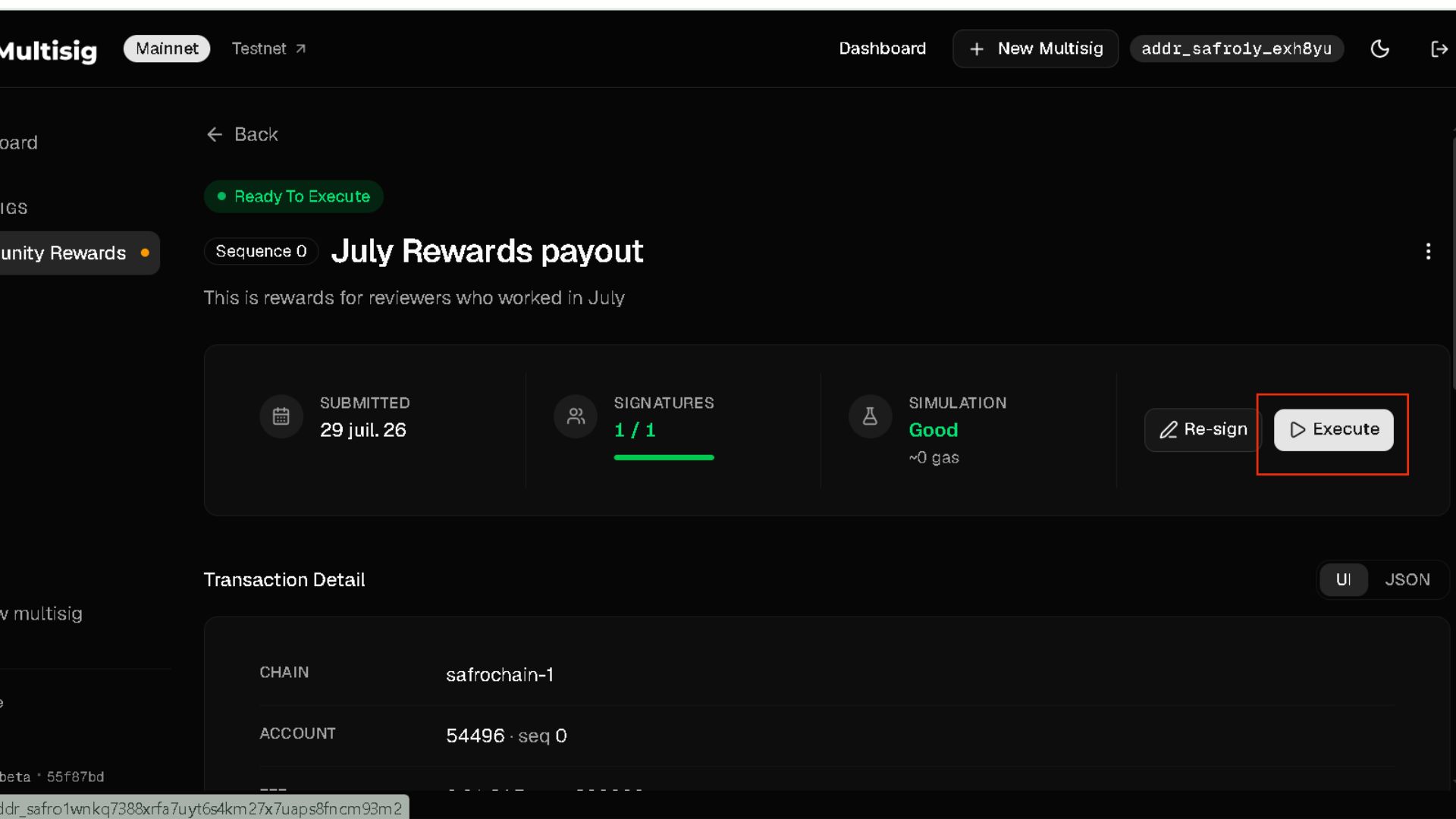
Once the required number of signatures has been collected, click Execute to broadcast the transaction to Safrochain.
Confirm the action and wait for the transaction to be processed by the network.
Step 7: Verify the Completed Transaction
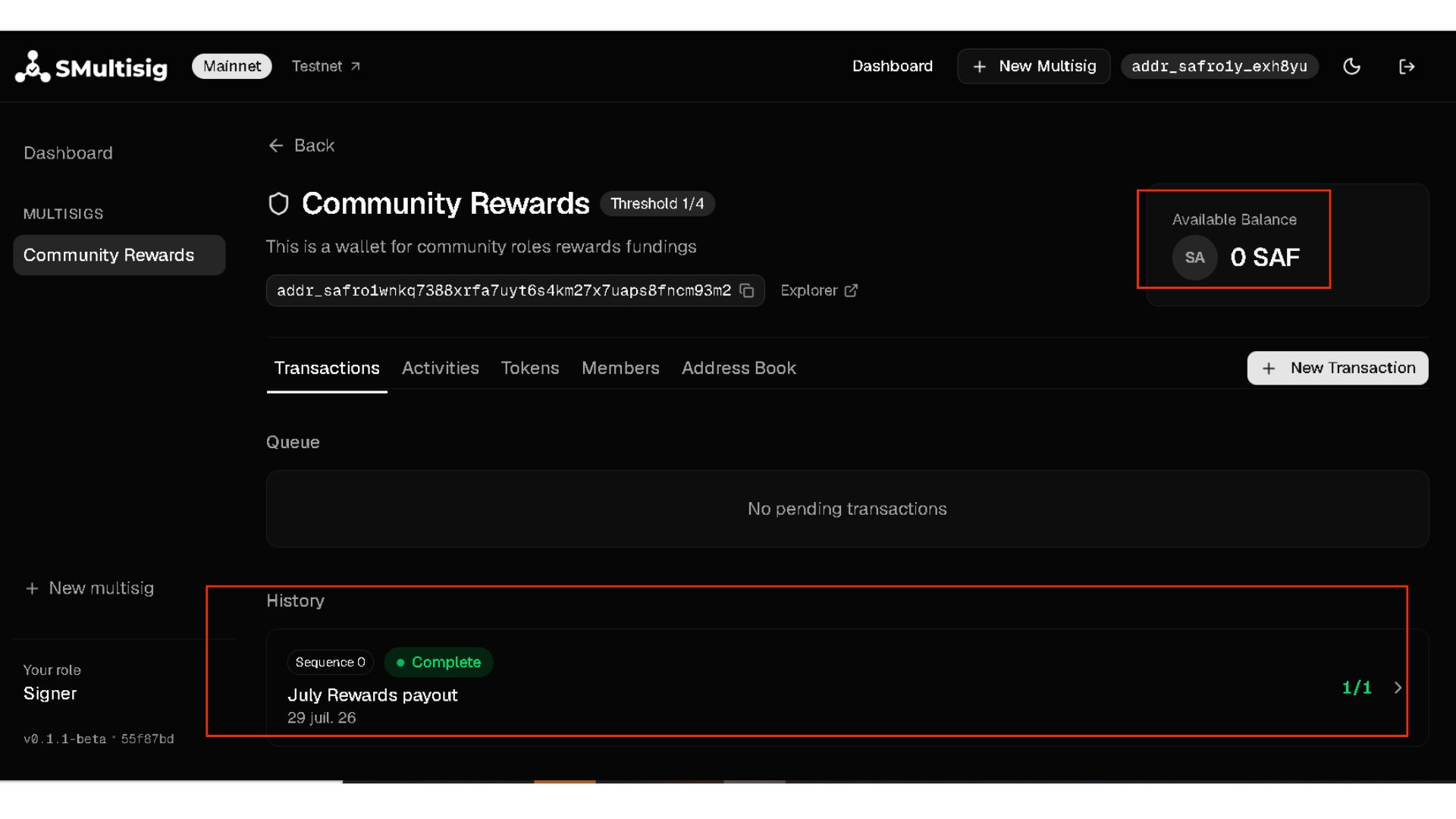
Once the transaction is successfully executed, it moves from the Queue to History and is marked Complete.
You can verify the completed transaction, its signature status, and the updated multisig balance directly from the dashboard.
In this example, the transaction is complete and the available balance is now 0 SAF, confirming that the transferred funds have left the multisig account.
Part III: Recovering an Existing Multisig
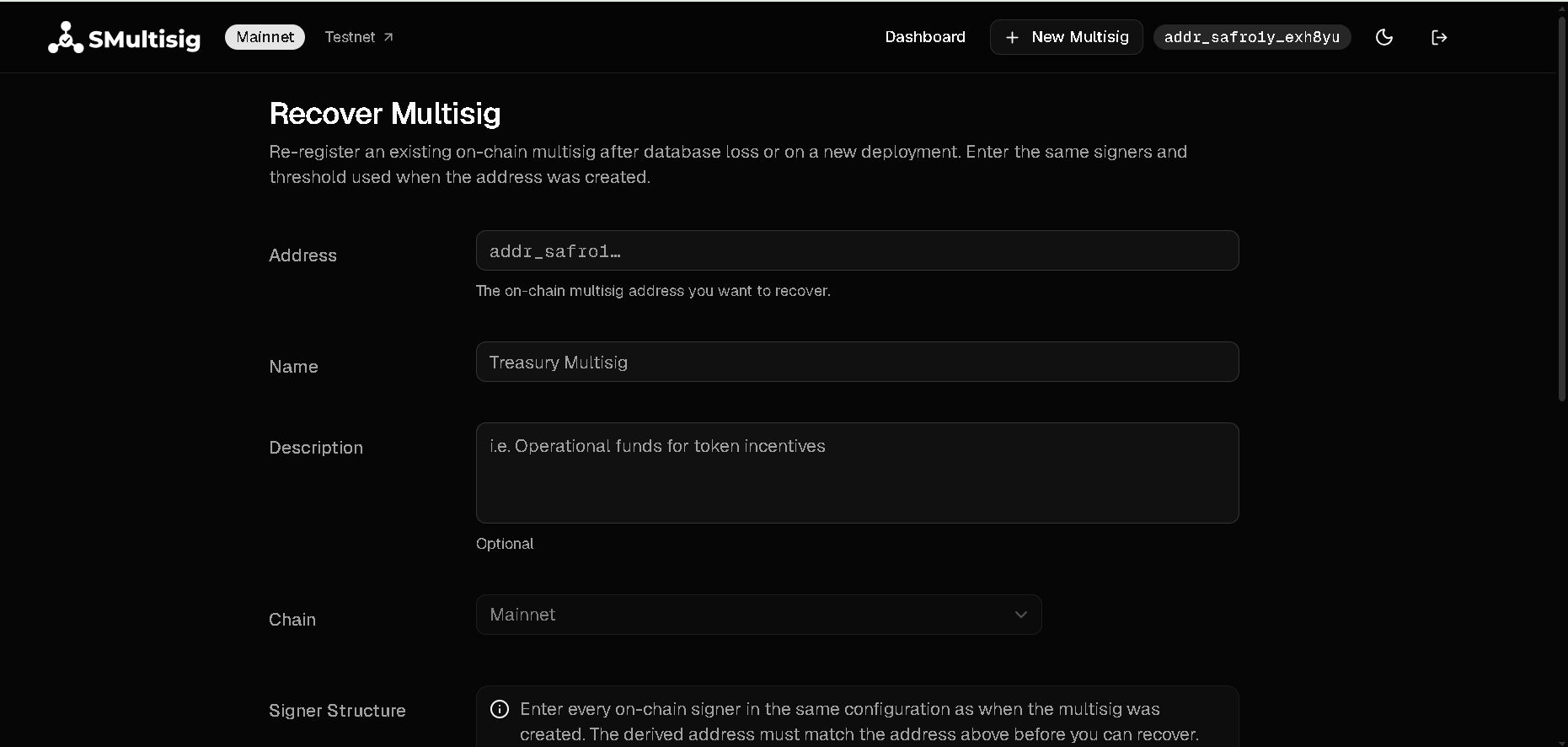
The Recover Multisig feature is used to re-register a multisig that already exists on-chain but is no longer available in the SMultisig interface, for example after database loss or a new deployment of the application.
To recover it, click Recover Multisig from the Dashboard.

Complete the recovery form using the original multisig address, network, signer structure, and signature threshold, then click Recover Multisig.
Note: Recovery does not create a new multisig or recover private keys or seed phrases. It re-registers an existing on-chain multisig in SMultisig using its original configuration.
Conclusion
SMultisig provides a practical way for teams to securely manage shared assets on Safrochain through multisignature approvals.
By following this guide, you have learned how to create and configure a multisig, fund it, create and sign transactions, execute them once the required threshold is reached, and recover an existing multisig when needed.
Always verify transaction details before signing and securely keep the information required to recover your multisig.
If you encounter a bug, need assistance, have a suggestion, or would like to provide feedback, reach out to the Safrochain team and community through the official discussion channels.